Epiq Discover Version 4.0 Release Notes (March 2025)
This release contains updates and improvements to Epiq Discover. The following notes highlight new enhancements to Epiq Discover and provide a list of bugs addressed in this release.
Release Highlights
Release 4.0 contains the following features, as well as additional enhancements listed in this document. The following sections contain details about these features and enhancements.
-
. This release introduces the new version Epiq Discover, featuring an improved navigation experience and additional enhancements. A toggle allows you to switch between the New and Classic versions of Epiq Discover. In addition, new User Preferences are available for you to tailor your experience.
-
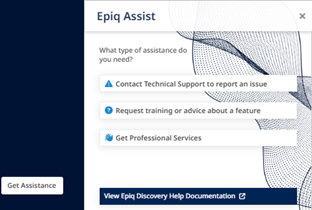
. In Epiq Discover, in addition to technical support, we added the ability to request training or advice on a feature, as well as professional services for project related tasks.
-
. Added the ability to specify the processed data time zone when performing a transfer to Relativity, to split datetime fields into separate date-only and time-only fields that you can map to corresponding Relativity fields, and the system can now update the ALL CUSTODIAN and ALL CUSTODIAN PATH fields in Relativity if a document transferred previously is found with a different custodian name.
Enhancements in Release 4.0
This release contains the following enhancements and updates.
General
Enhanced navigation experience
This release provides an up to date front end, moving the frontend Java framework from the original Angular version to an up to date React framework, which provides added flexibility and performance. During this work, we updated every aspect of the UI to the new framework.
New user interface changes include:
-
. This toggle provides the ability to switch between the navigation and the navigation as needed. We recommend using the navigation, which is where new features will be available going forward.
-
When switching from to , you can supply feedback about why you switched.
-
When you switch, the Client List or Project List page is displayed, depending on your role. This is intended behavior for this implementation.

-
-
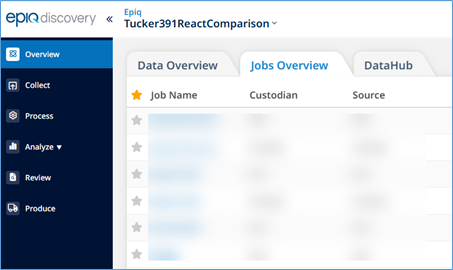
. Use the new left navigation menu, which presents the familiar Epiq Discover features.
-
. The Overview page now contains tabs for clearer flow to , , and a new location for . Additionally, the displays files within the context of the current project.
-
. This enhancement is a response to feedback that showed truncated project names displayed in the header could make it difficult to distinguish between similarly named projects.
-
. Click
 and then, select the new menu item to view the familiar information about your profile and two new features.
-
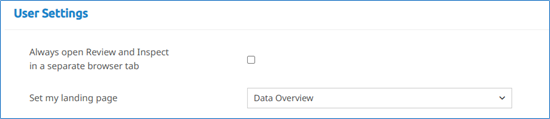
. After checking this option, in the Main Menu, when you select or , the page opens in a new tab as you did in previous releases. Uncheck this option to open or in the current tab.
-
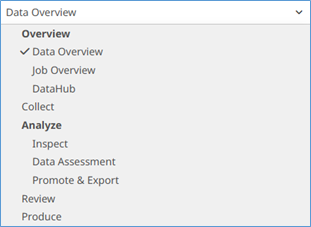
. In previous releases, your role determines the landing page that opens when you launch Epiq Discover. For example, for Project Managers, the project opens to the Overview page. Now, you can set the landing page from options available for your role. For example, for Project Managers, you can choose from the following options, which includes the Data Assessment page.
-
Request training, professional services, or technical support
In Epiq Discover with the New/Classic toggle set to , we added the ability to request training or advice on a feature, as well as professional services for project related tasks. This feature replaces the previous  > functionality. Epiq Assist is shown below.
You can now view online Help by clicking . (893196)
-
To contact technical support to report an issue, refer to Contact Support.
-
Request training or advice on a feature, refer to Request Training.
-
Request professional services for project related tasks, refer to Request Professional Services.
Process
Post Processing job update
Significantly improved the speed and performance of the job that calculates the family count of the documents during Processing. (929148)
Inspect/Review
Transfer to Relativity updates
Enhancements to the Transfer to Relativity feature include: an added time zone management capability, the ability to append to all custodian fields, and a method to split time and data fields.
TimeZone management updates
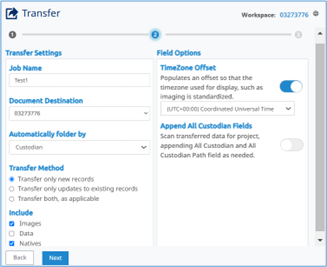
In Inspect and Review, a new time zone management capability was added to the Transfer to Relativity Document Action. This feature ensures accurate time representation of documents in Relativity by allowing you to specify the processed data’s time zone during transfer, which automatically calculates the correct Native Time Zone Offset value.
To enable the TimeZone Offset feature, navigate to the and in , toggle the to enable standardized document time display, then select your time zone. (779783)
Append All Custodian Fields update
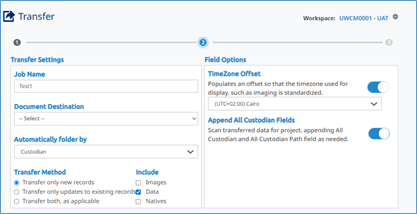
This enhancement ensures that when a document is present under multiple custodians in Epiq Discover, all custodian names are updated when transferred to Relativity.
In Inspect and Review, you can now select a toggle option in the Transfer to Relativity page to identify and update custodian data of documents in Relativity. When this toggle is enabled, the system searches all documents at a project level to identify those with additional custodian data processed and loaded earlier. This data is appended to the ALL CUSTODIAN and ALL CUSTODIAN PATH fields in Relativity if a document transferred previously is found with a different custodian name.
To append the data, navigate to the and in , enable the toggle. (846860)
Date Time Fields Splitting update
In Inspect and Review, a new feature was implemented that allows splitting of datetime fields into separate date-only and time-only components during Relativity transfer. When this option is checked, you can create split fields for selected datetime fields, which can then be mapped to corresponding Relativity fields.
Split fields are displayed as with field type set to Date in Relativity to display only the date value (MM/DD/YYYY), and set to Fixed Length in Relativity. (851774)
To create split fields, perform the following procedure.
-
In , select to create a new Field Mapping template that maps the fields or select an existing Field Mapping template from the list.
-
To automatically map to Time Zone Field and Relativity Native Time Zone Offset, in List, select and . Then click .
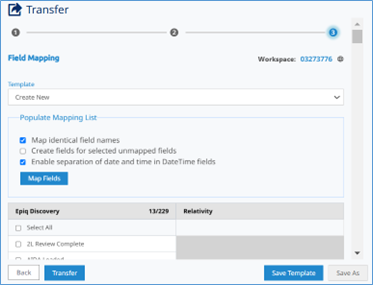
Image update
In Inspect and Review, the system now supports imaging .mht files as they appear in the Native viewer. Previously, images of .mht files displayed HTML code, but now they accurately reflect the content shown in the Native viewer. (820123)
Assignment update
Implemented pagination in > > window so that it now returns 50 batches per page. Use the pagination tools at the bottom of the page to go to the first, previous, next, or last page. (922255)
-
By default, the system lists the batches in ascending order by batch name.
-
You can filter batches by or .
-
Click to remove any applied filters.
Production
Production Validation Result update
In the dialog box, updated label to . (892236)
Bugs fixed in Release 4.0
The following bugs were resolved in this version.
|
Number |
Title |
|---|---|
|
674624 |
Production | Deletion of the production job takes longer than expected for 325k pages |
|
678836 |
Promotion/Conceal | Document States not in Synch between Elastic & MySQL |
|
740295 |
Production | Production is failing with error 'class com.aspose.pdf.internal.l7t.l1v cannot be cast to class com.aspose.pdf.internal.l7t.ly' |
|
817706 |
Production | Production Job failed with errors "Cannot read the array length because "<local2>" is null" |
|
819755 |
Processing | MYSQL and OS is not syncing up correctly |
|
829063 |
Report | Search hit report issue with 'Not in Hosting' document count |
|
829188 |
Processing | Deduplication and Post Processing shows additional count in the pop-up |
|
829303 |
Search Builder | Searching Document state for DeNISTed but it shows NIST file. |
|
830905 |
Processing | Error "Cannot invoke "com.stormed.common.projectfields.Field.getFieldName()" because the return value of "java.util.Map$Entry.getKey()" |
|
832070 |
Inspect | Document Showing up on UI are not in sync with page number when users click the next page (icon) |
|
834215 |
Inspect/Review | Undocked viewer, fields are not populated in document list |
|
836633 |
Search: Search with family does not return the right number of documents |
|
837002 |
Production | Searchable PDF | Production was failing. |
|
837113 |
Project Manager | Unable to send an invite to the user |
|
861512 |
Fixed an issue where Imaging jobs failed silently. Also, the system now creates an exception report when an Imaging job fails. You can download this report from the Projects Jobs page, the Jobs Overview page, or the JOBS page in Inspect or Review. The name of the report is ProjectName-ImagingExceptionReport-TimeStamp. |
|
906062 |
Processing | Documents missing from Open search and Reprocessing failing to delete |
|
906249 |
Desktop Client | When loading, if the LST file path does not include a .txt file extension, the system now displays a validation error and prevents you from submitting the loading job. If the LST file is not provided, the system validates the DAT file for a .txt file extension. |
|
913780 |
Filter | Filter job completed with errors and could not be completed successfully, even after multiple retries. |
|
918104 |
User Admin | When adding user to different projects, MFA is removed for all users in the project |
|
918493 |
Mobile Collection | ValueError: invalid literal for int() with base 10: 'iPhone Cellebrite XML' appears when the user navigates through UI. |
|
920036 |
Mobile Collection | Mobile Collection completed with errors "The Fragment failed to complete in the allotted timeout" |
|
920654 |
Mobile collection | Update Job Status to Failed When Parent Fragment Fails |